
- +1 800.367.9501
- support@suiteamerica.com
Welcome to 
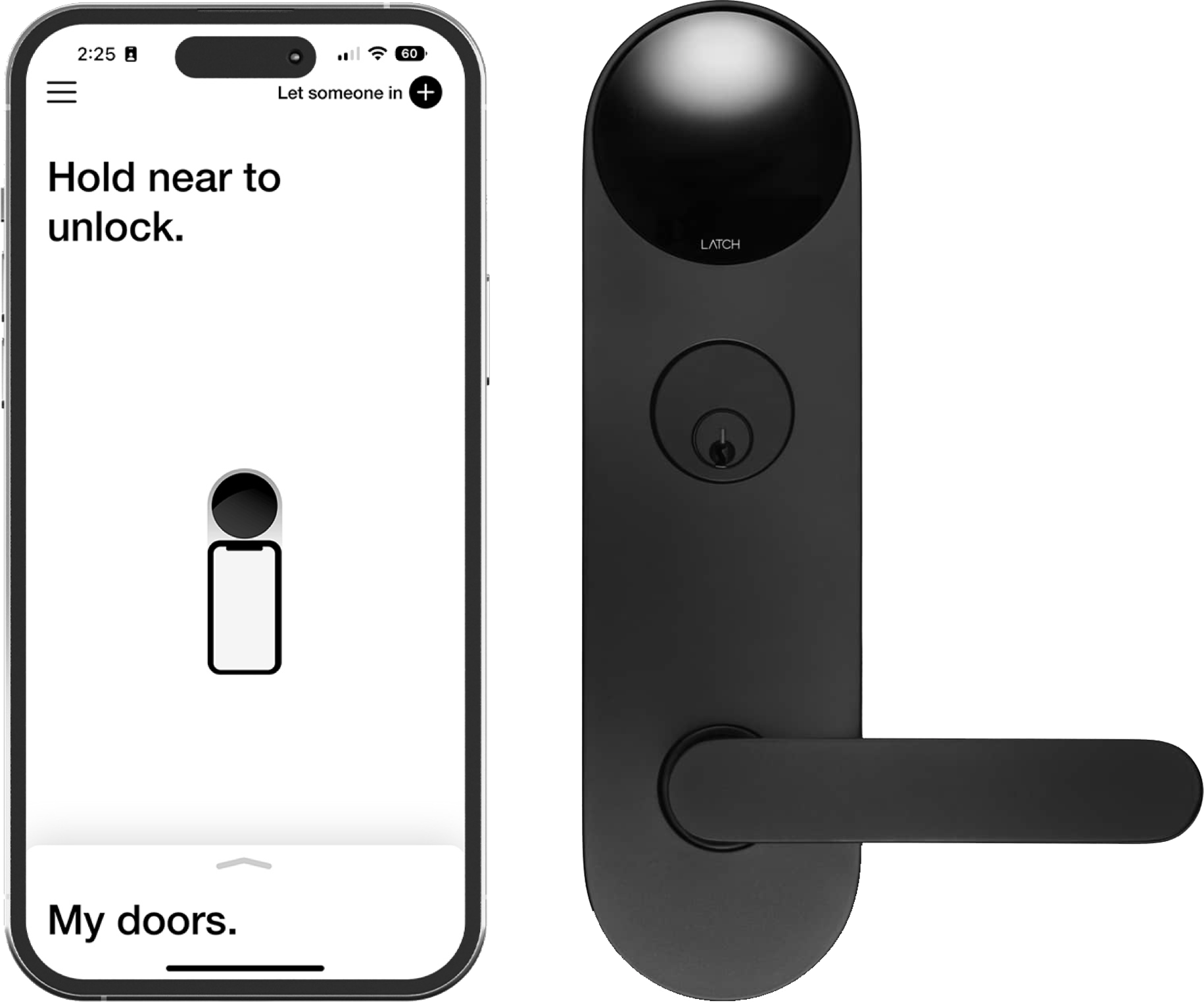
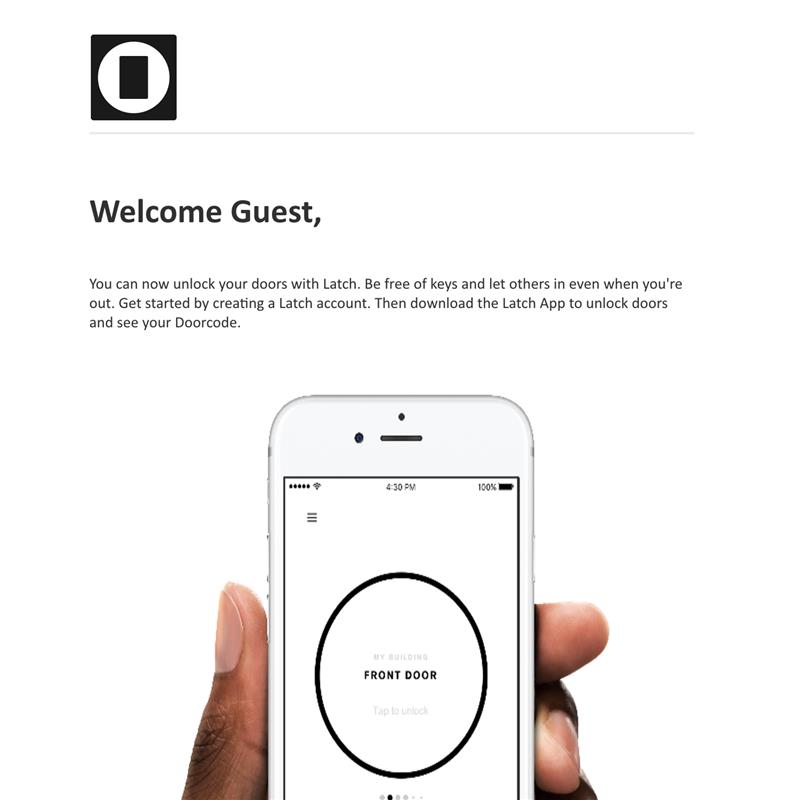
Your community uses the Door app for remote, keyless entry. Door will give you access to buildings, amenities, and elevators, and will unlock the door to your suite.
Activating the Door app
- Expect an email directly from Door (not SuiteAmerica) for electronic key registration.
- Register before your arrival date (check your junk email if not in your inbox).
- If traveling internationally, wait until you're in the U.S. to download the Door app.
- Crucial: Log out after downloading and registering. When you arrive, log in to see your 'keys.' Do not skip this step.
Unlocking a Door with the Door app
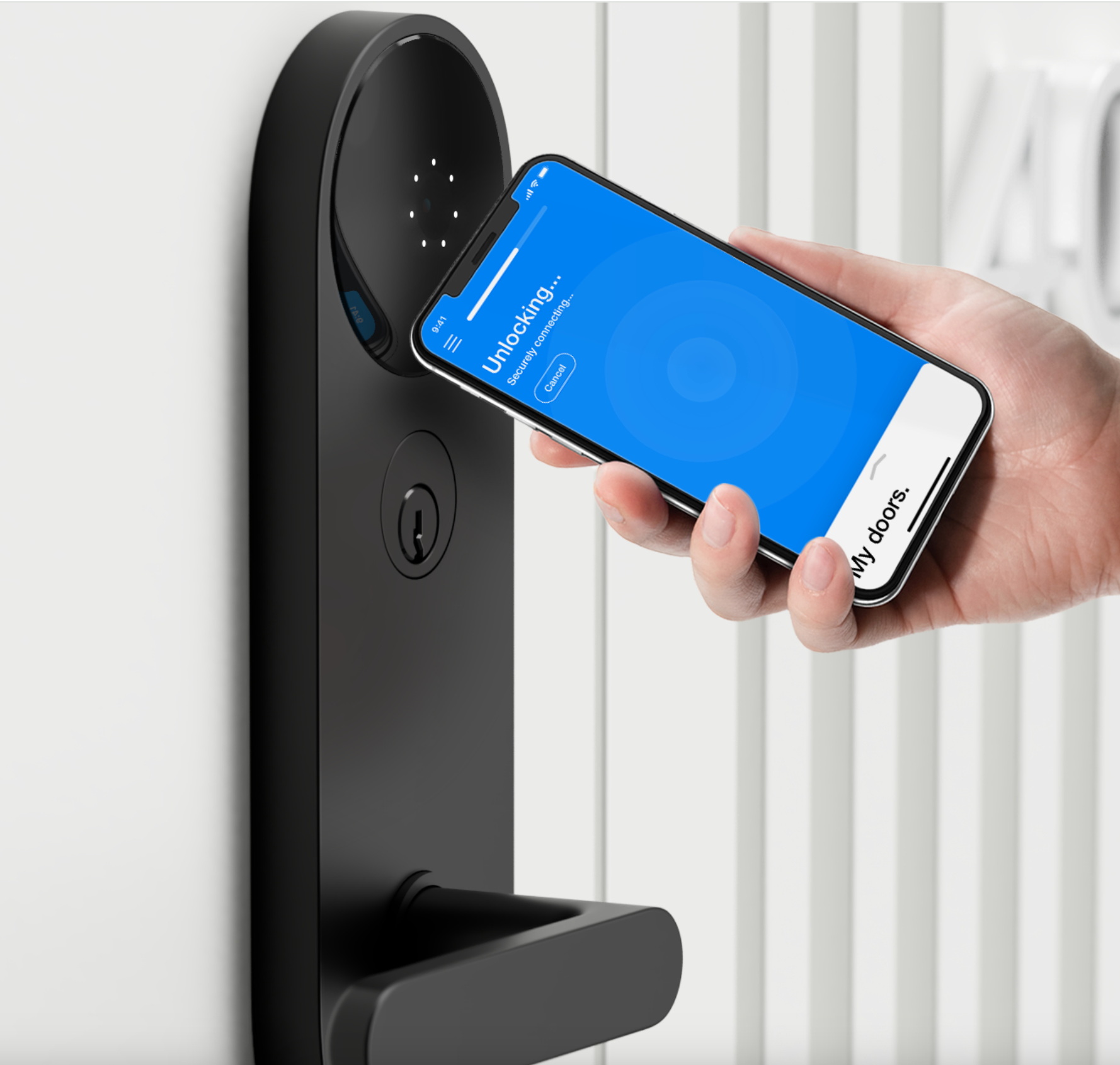
- Open the Door app on your phone.
- Hold your phone to the Door reader on the door, keeping it facing you. The blue bar at the top will turn green, and dots will connect as your phone syncs with the reader.
- Once the bar is green and the dots connect, the door is unlocked, and you can proceed.
Note: The first time you use Door, it may take up to 90 seconds to sync.
Using Door on an Elevator
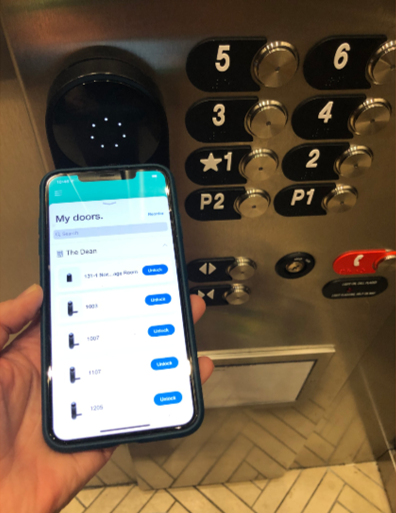
- Use the Door app on your phone.
- Hold your phone near the Door sensor.
- Wait for the 'unlocked' signal and sensor dots to connect.
- Select your floor number.
Note: Wait up to 5 seconds for the 'unlocked' signal before choosing your floor.
FREQUENTLY ASKED QUESTIONS
- Please make sure to check that your Bluetooth is turned on, that you are signed into the DOOR app, and holding your phone within a few inches of the DOOR reader (please note that it may take anywhere from 30-90 seconds to engage initially, and you will need to hold the phone near the reader for that time).
- If you are experiencing any issues opening doors, please go to your settings in your phone, application manager, and ensure that the application is up to date. If that doesn’t work, try logging out and back in and trying again. You may need to “force quit” the Door app and re-open the app.
- If you are still having issues, you may try uninstalling and reinstalling the application.
- If you have tried all steps above and are still experiencing difficulties connecting to the doors, please reach out to us and we will try additional troubleshooting steps with you.
- On the “My Doors” page, tap on the door that you would like to update. A few lines below the door name, click the blue “update” text. This takes you to the next page which has a blue “update” button and shows the last time and date that the door has been updated. Once the update has gone through, there will be a green checkmark in a circle.
- SuiteAmerica can send access for as many guests as you need. Please email us at guestserve@suiteamerica.com or call us at 1-800-367-9501 with the full name and best email for your guests, as well as what time frame you would like them to have access for.
- Swipe up to your Door List and tap the Door you want to unlock.
- You can also enter a 7-digit Doorcode. You will find your Doorcodes in the left menu of the Door App. Tap the center of the black Door Lens on the device and enter your Doorcode.
- The DOOR is battery powered and needs to be changed about every 12 months. When the DOOR battery is running low, our team will reach out to you for Permission to Enter your suite, as the community maintenance team will need to access your door from inside the suite. To change the batteries only takes a few minutes. If our team reaches out to you with this the request, please respond as soon as possible because if the DOOR batteries run out, this will create a lock out of your suite.
 CALL
CALL24 hours a day, 7 days a week
800.367.9501800.367.9501 EMAIL
EMAILAsk us anything, we’re here to help
Email Us